Create templates with multiple previews
Last updated: October 20, 2026
Templates can include multiple previews, allowing you to show different views of the same product while using a single Template.
For example, you can display the front and back of a t-shirt, or show a product in different settings, such as a clean mockup and a lifestyle image.
How do multiple previews work?
In the Design Studio
You can add multiple previews to your template, and each preview can be configured independently. You can:
Use a different background for each preview.
Resize and position elements differently.
Show or hide specific elements in each preview.
Add Dynamic Images independently to create different visual effects.
Multiple previews affect how the product is displayed, but don't change its production files.
On your store
Each preview becomes a selectable option for shoppers
Shoppers can switch between previews to view different versions of the product
Previews can also change automatically. When a shopper interacts with a personalization that belongs to a specific preview, the view will switch accordingly. For example, if you have a front/back setup and the shopper edits a field placed on the back, the preview will automatically switch to the back view
All personalization options remain visible at all times, even if they belong to different previews (e.g., front and back)
Important
Do not show or hide personalization options based on the selected preview.
Previews only control how the product is displayed — not how personalization works.
If options are hidden depending on the preview:
Some required inputs may not be filled
This can result in missing personalization details when the product is added to the cart
How to create multiple previews
Open your Template in the Design Studio.
Go to Preview Setup.
At the top of the canvas, you'll see Default Preview. You can rename it if needed.
Click the + button next to the preview name to add another preview.
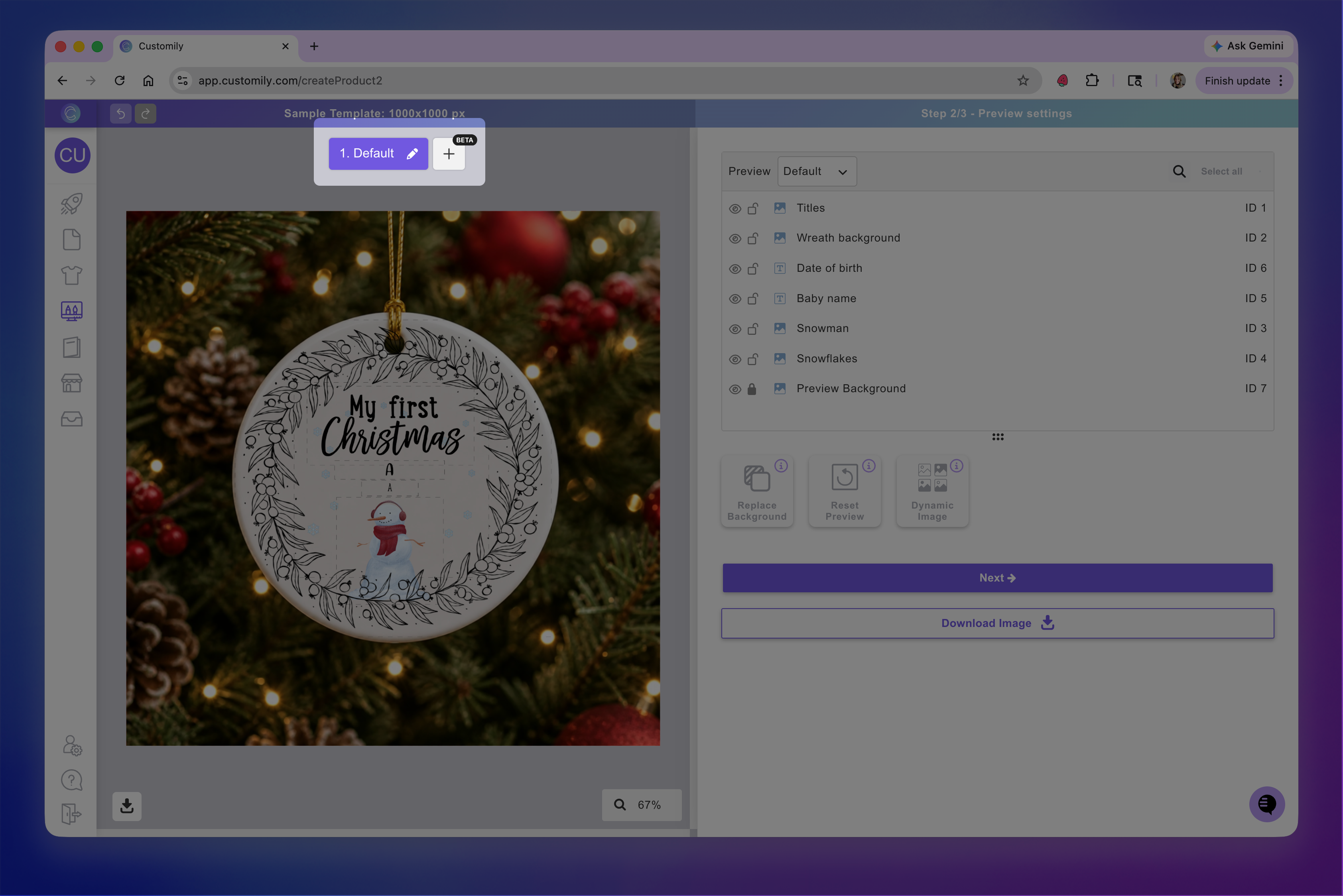
Configure the new preview. You can change its background, adjust the position and size of elements, and choose which elements should be visible.
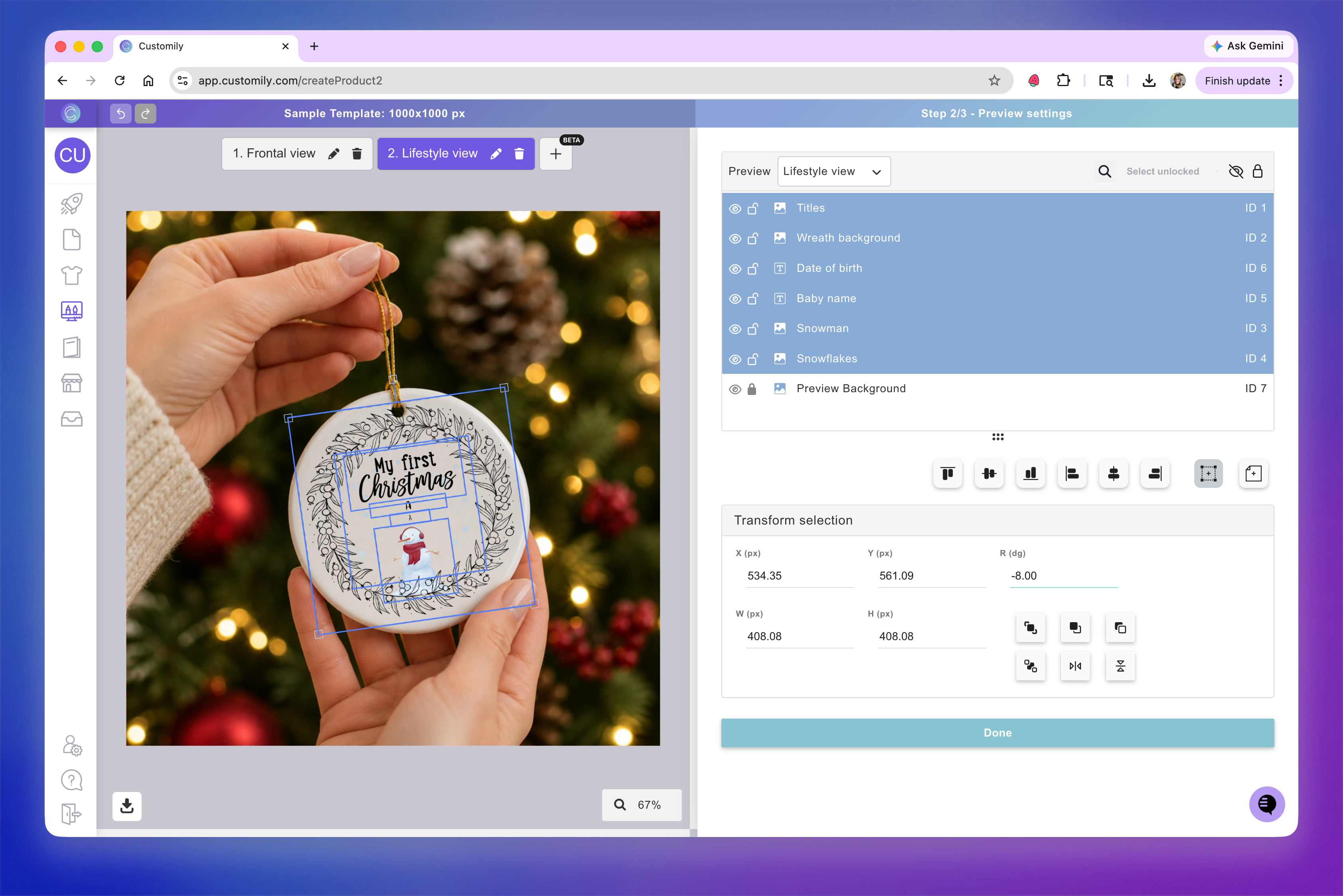
Tip
You can switch between previews using the controls at the top of the canvas or the Layers panel. Each preview has its own layer visibility settings, so you can control which elements appear in each view.
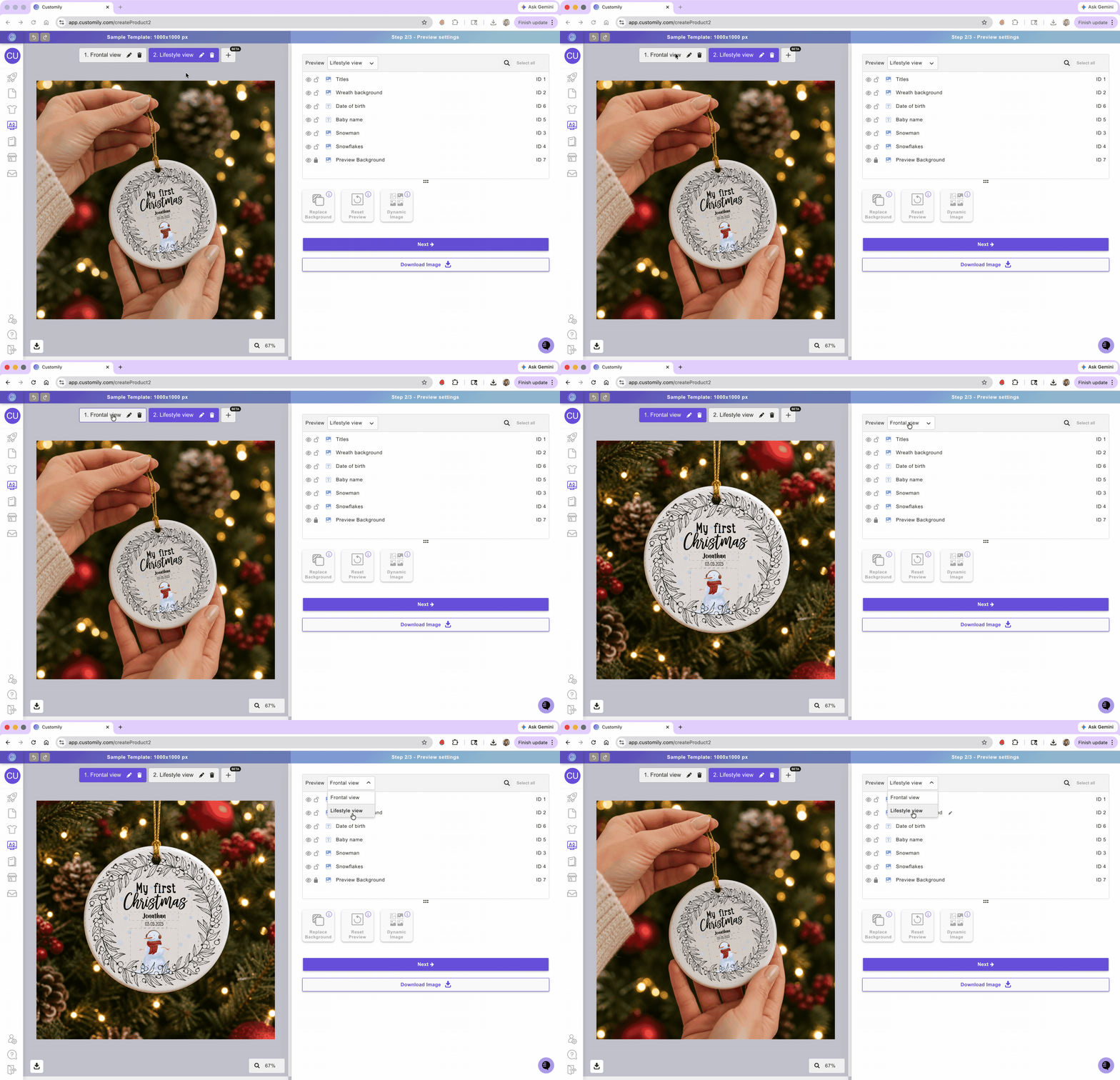
Multiple previews vs. multiple pages
Multiple previews and multiple pages serve different purposes:
Multiple previews: Display different views or mockups of the same product.
Multiple pages: Generate separate production files for different parts of a product.
You can use either feature independently or combine them.
For example, a t-shirt personalized on both sides might need:
Two pages to generate separate print files for the front and back.
Two previews to show shoppers how each side will look.
Using multiple pages and multiple previews together
When your product requires multiple production files, you can combine pages and previews to create a complete personalization experience.
Create multiple pages in your Template's print file, one for each part of the product (e.g., front and back).
Add and configure the personalization elements for each page.
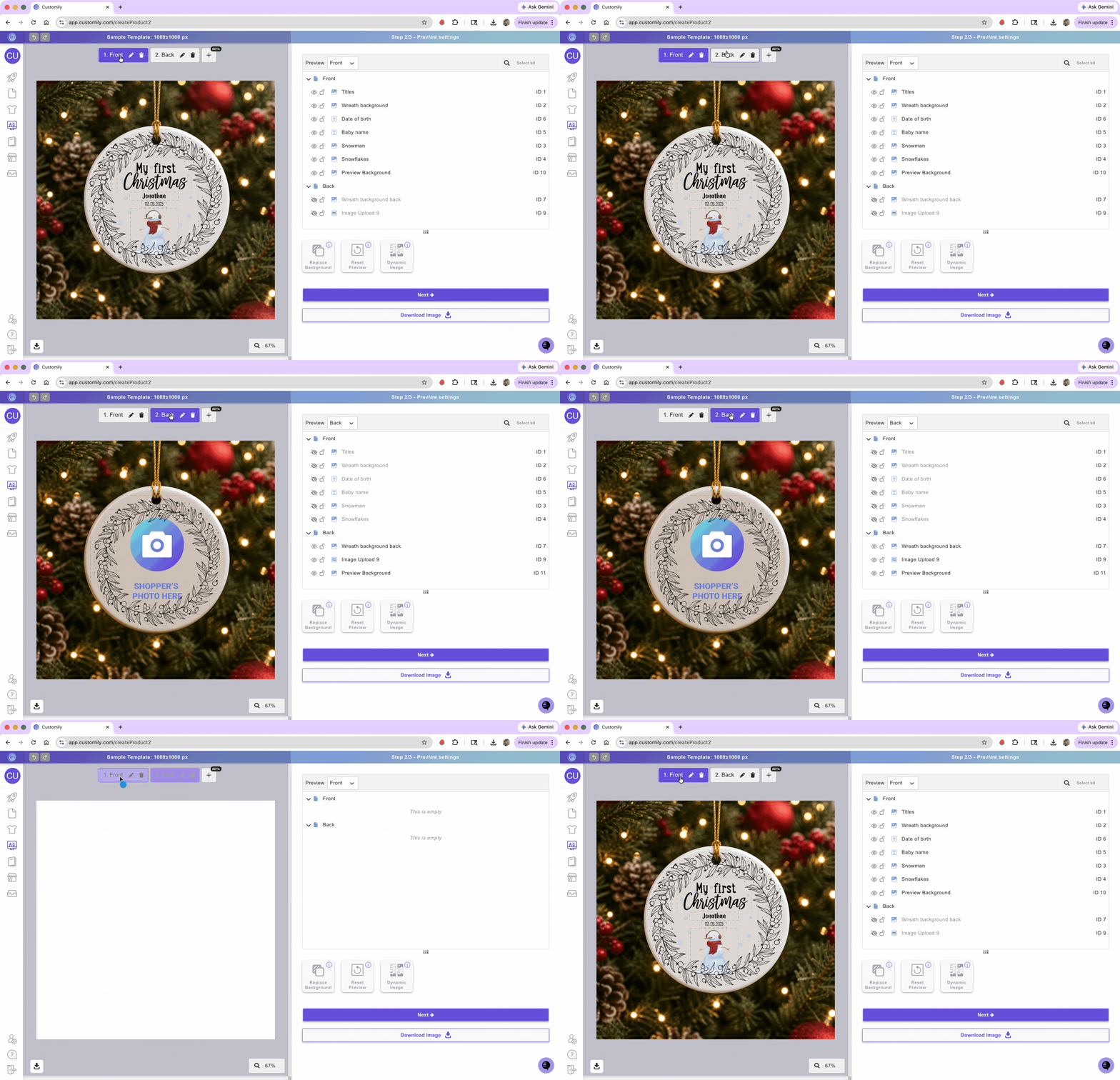
Go to Preview Setup and create a preview for each view.
Adjust each preview to show only the elements that belong to that view.
Position and scale the elements to match the product mockup.
Tip
You can create as many previews as needed, including front, back, side, or combined views showing multiple parts of the product. Simply control what each one shows by turning layers on or off.
Control how shoppers switch between previews
You can let shoppers select previews manually or configure them to change automatically during personalization.
Let shoppers select a preview
Shoppers can switch between the available previews to see different views of the product using a swatch or dropdown on the option set.
Change previews automatically during personalization
When a shopper interacts with a personalization option associated with a particular preview, Customily can automatically switch to that view.
For example, if a shopper starts editing text on the back of a t-shirt, the preview can switch to show the back.
Sync previews with Option Set sections
If your Option Set uses sections, you can synchronize them with your previews. This is especially useful when shoppers personalize different parts of a product, such as its front and back.
To enable this:
Organize your Option Set into sections corresponding to the different previews.
Go to Store Settings > Styles.
Enable Sync Preview with Sections.
Customily matches sections and previews in their order:
The first section displays the first preview.
The second section displays the second preview.
The third section displays the third preview, and so on.
Note
Sections and previews are matched sequentially. You cannot assign a section to a different preview out of order.
How the preview changes depends on how your sections are displayed:
With section accordions or navigation buttons: The preview changes as shoppers move between sections.
When all sections are visible: The preview changes as shoppers interact with options in a different section.
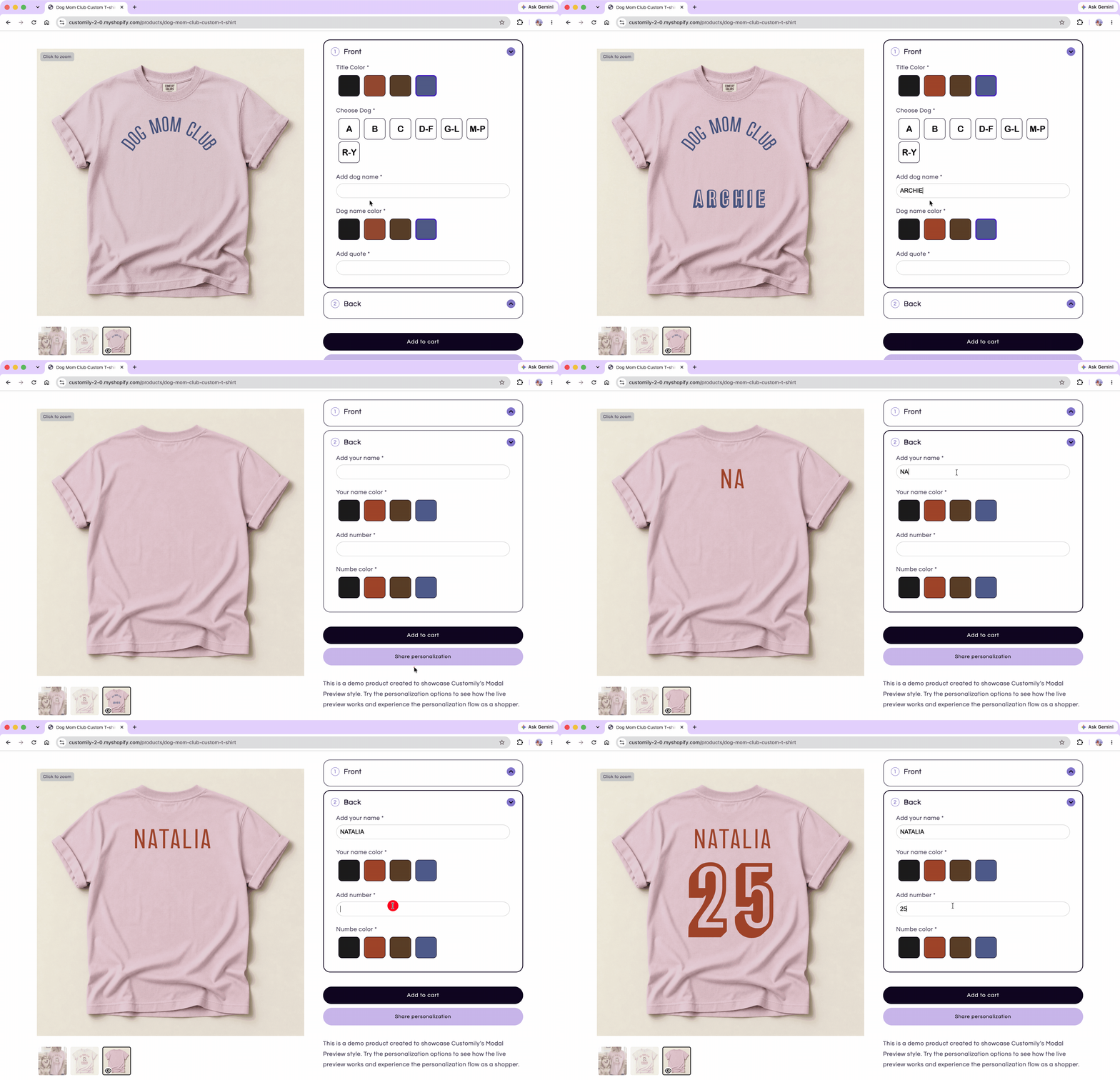
You can also configure which personalization options are shown in different sections, allowing shoppers to focus on the part of the product they're currently personalizing.
See 📄 Customize sections and navigation for more information on organizing sections, adding navigation buttons, and synchronizing them with previews.