Transforming an element
Last updated: April 28, 2026
By selecting an element and expanding the transform toolbox you can transform their:
These transformations can also be done directly in your workspace when selecting the elements.
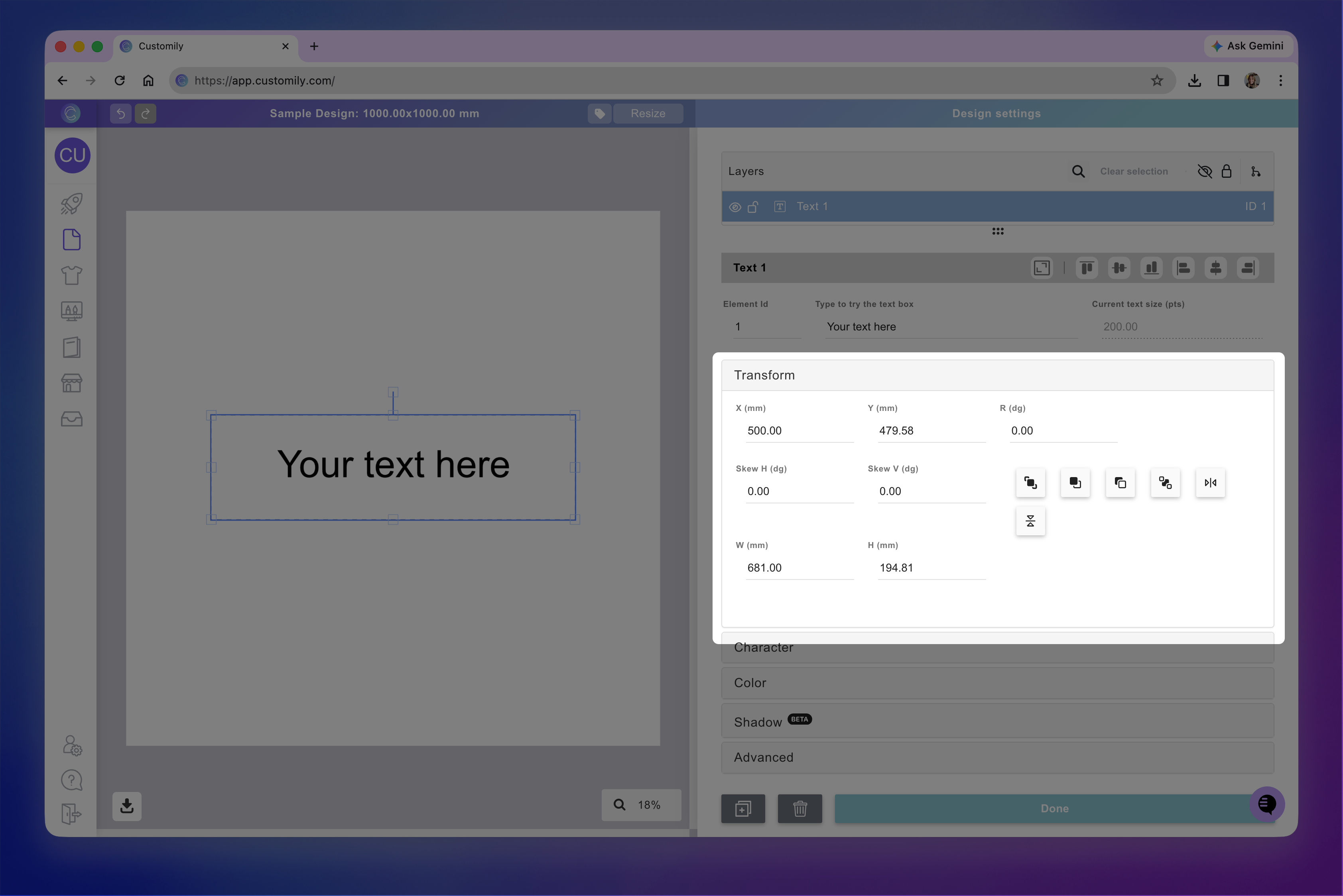
Positioning an element
The position of an element can be adjusted simply by selecting the element and dragging it around the canvas. If you'd like to change the position more precisely you can do so by entering the X and Y values on the toolbox.
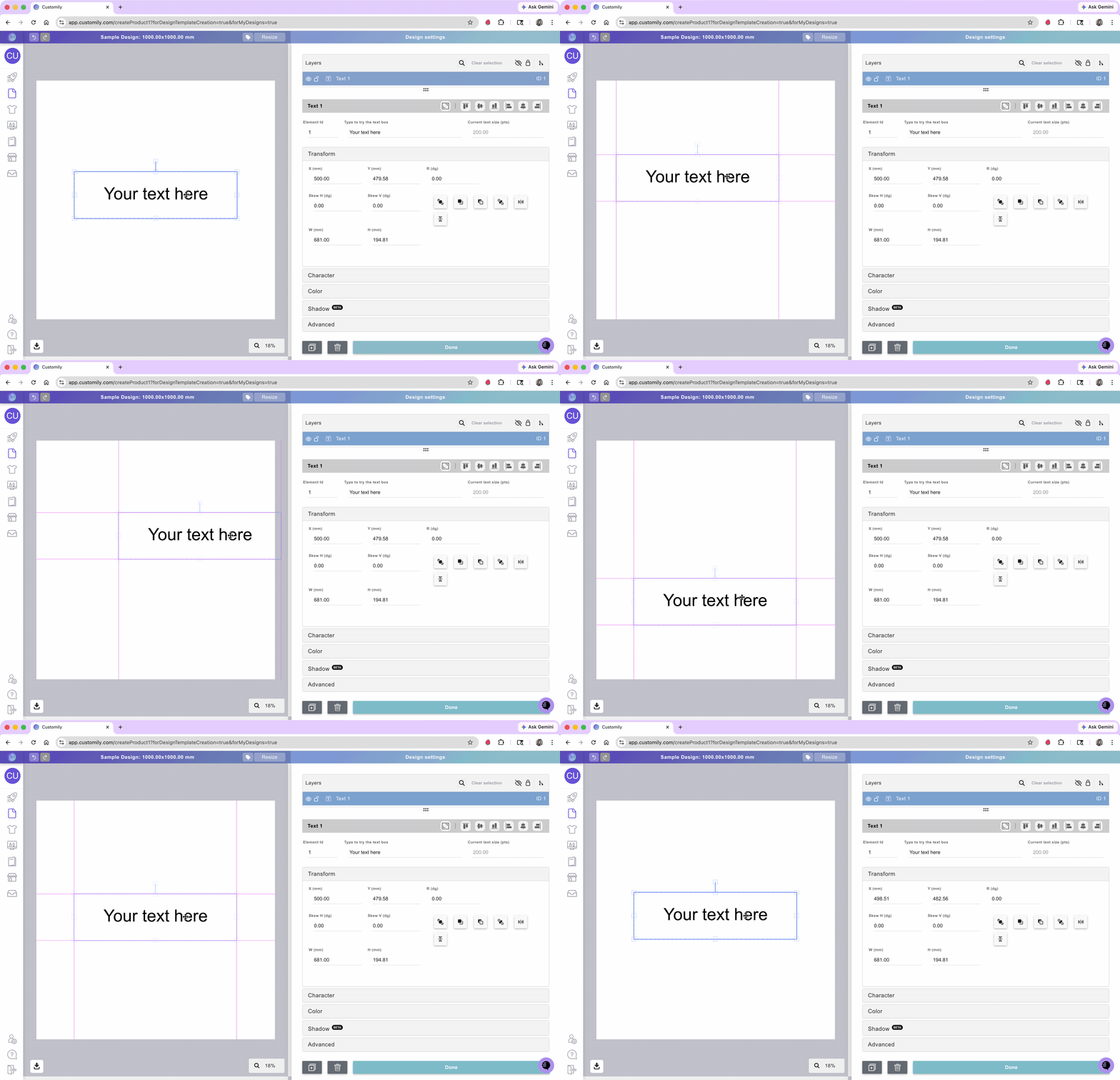
To reposition from the workspace:
Click the element
Drag it around the workspaces to change its position. You can also use the arrow keys on your keyboard to move it.
To reposition from the tool panel:
Click the element
Expand the transform toolbox
Change its X and/or Y values. The position is always shown in millimeters (mm), with 0 being the top left corner of the canvas.
Tip
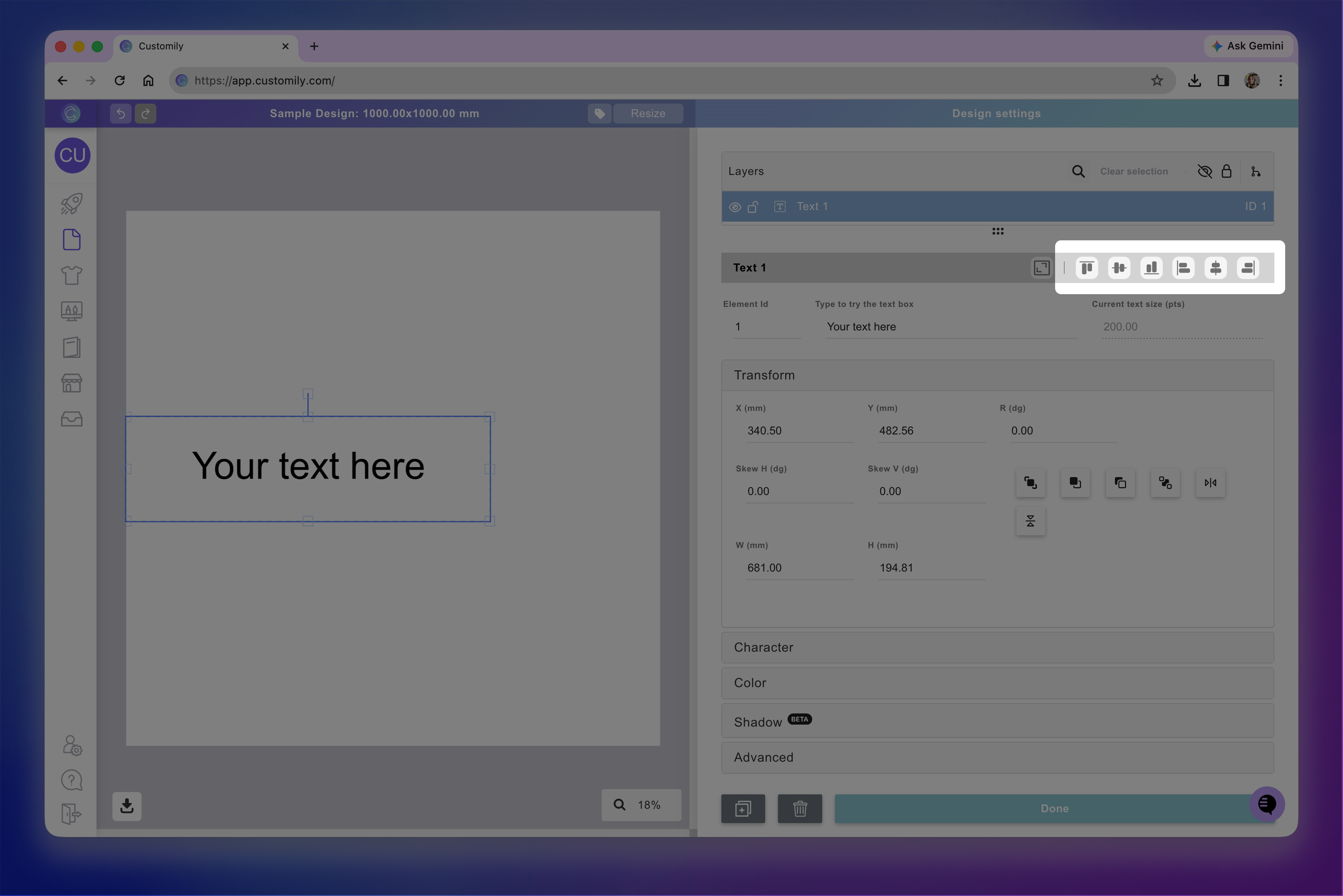
If you want to align elements to the canvas or between each other, you can do so by using the align buttons. Simply select one or more elements and choose the alignment you want.
Rotating an element
The rotation of an element can be adjusted by selecting the rotation handle on the top of the element. If you'd like to change the rotation more precisely you can do so by entering the degrees on the toolbox

To rotate from the workspace:
Click the element
Select the rotation handle on the top of the element and move it around.
To rotate from the tool panel:
Click the element
Expand the transform toolbox
Change its Rotation (R) value. The rotation is always shown in degrees (dg).
Resizing an element
The dimensions of an element are represented on the workspace by a light blue line. You can resize an element by clicking and dragging its handles from the workspace or by changing its width (W) and height (H) values on the toolbox.

To resize from the workspace:
Click the element
Select the corner or side handles of the element to resize it.
The side handles will stretch the element, the corner handles will resize it proportionally. You can hold shift while resizing to resize from the center of the element.
To resize from the tool panel:
Click the element
Expand the transform toolbox
Change its width (W) and/or height (H) values. The dimensions are always shown in millimeters (mm).
Tip
You can easily resize an element to be the size of the whole canvas with one click. Just select the element and click the fit to canvas button.

Adding skew to an element
Skew lets you apply perspective to the elements. You can use it on your designs, or as a great way to add a more realistic feel to your mockups. You can add skew by holding ctrl and clicking and dragging the side handles from the workspace or by changing the horizontal skew and vertical skew values on the toolbox.

To add skew from the workspace:
Click the element
Press and hold ctrl
Select the side handles of the element to add skew.
The left and right handles will add vertical skew. The top and bottom handles will add horizontal skew.
To add skew from the tool panel:
Click the element
Expand the transform toolbox
Change its horizontal skew (skew H) and/or vertical skew (skew V) values. The skew is always shown in degrees (dg).
Flipping an element
You can flip an element horizontally or vertically by clicking the button. Once the element is flipped, anything in it (wether is text, uploaded images, or dynamic elements) will be flipped.
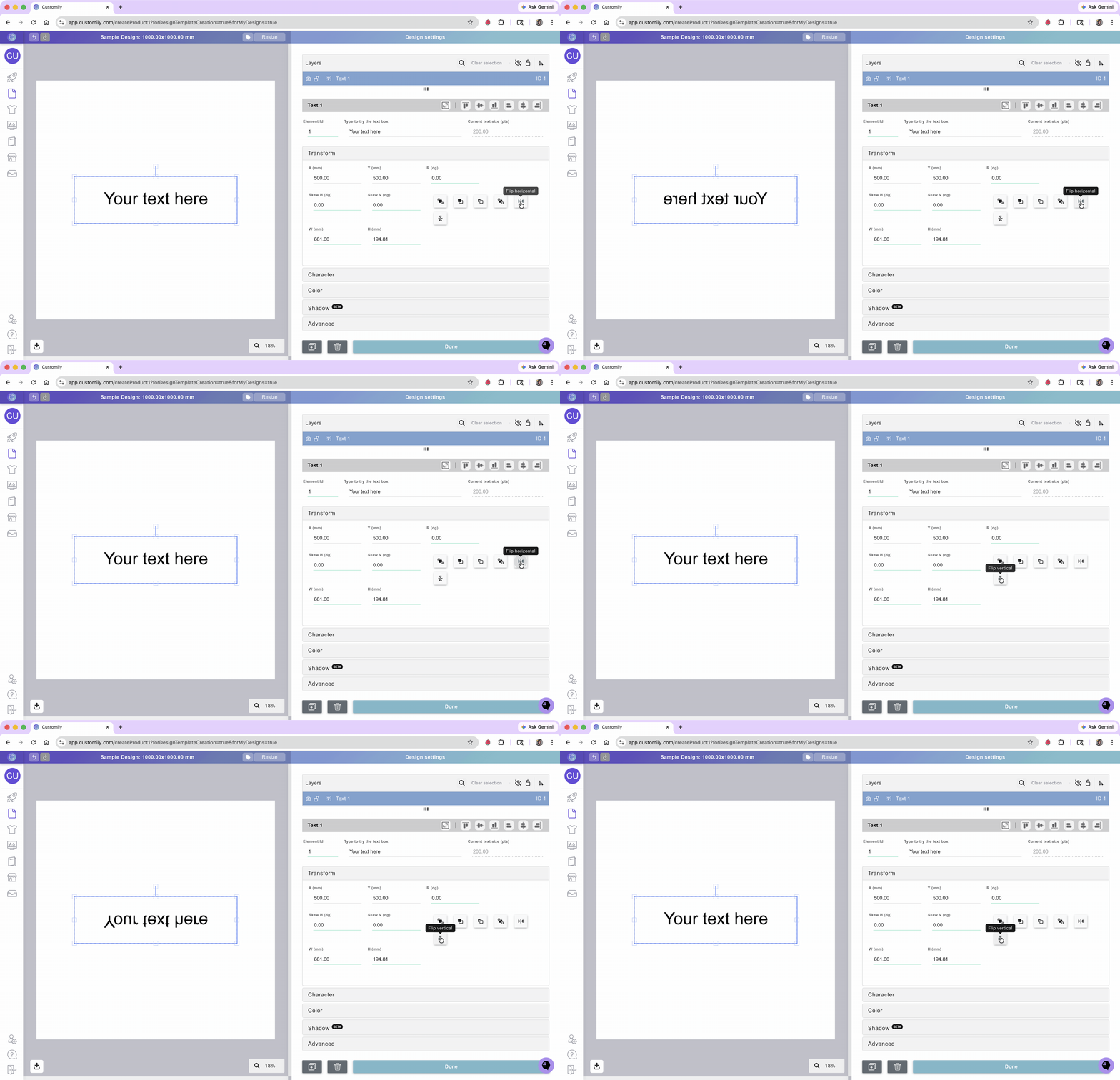
To flip an element:
Click the element
Expand the transform toolbox
Click the horizontal flip and/or vertical flip buttons
Changing the order of an element
The easiest way to change the order of an element (bring it forward or backward) is to click and drag it on the layer panel. However, you also have the chance to do that through the transform toolbox.
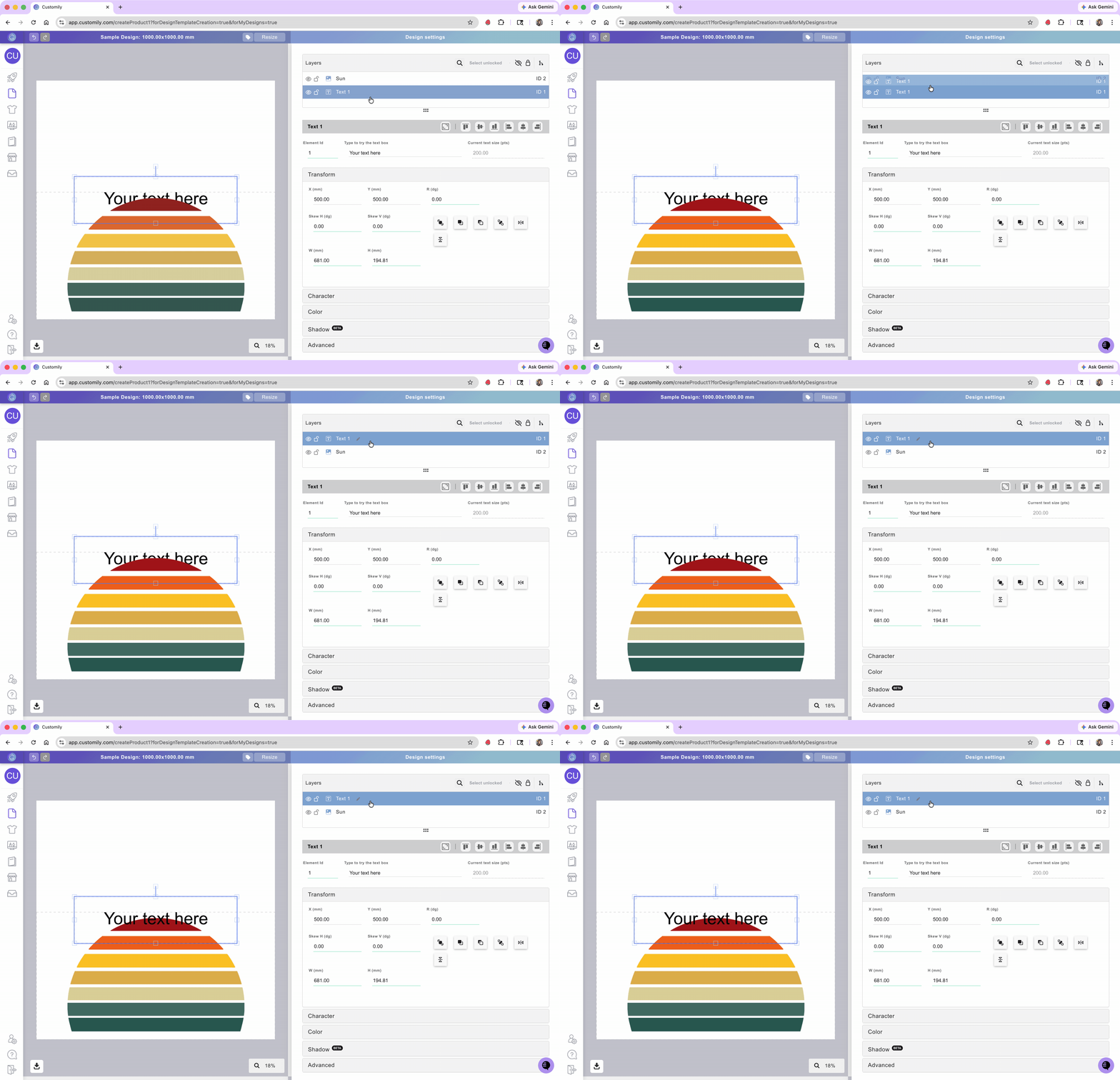
To change the order from the layer panel:
Click to select the element
Drag and drop it to reposition its order
To change the order from the tool panel:
Click the element
Expand the transform toolbox
Click the buttons to bring the element to the front, to the back, move one forward, or move one backward