Add personalization to a product using a Template and Option Set
Last updated: October 12, 2026
If you already have a product in your store and want to add personalization without using a Product Base and Design, you can create your own Template instead. This gives you more control over the product's preview and print-ready file.
Once your Template is ready, you'll connect it to your product along with an Option Set that defines what shoppers can personalize.
In this guide, we'll walk you through the process, including how to create your Template during setup if you haven't made one yet.
Note
This method is for your own products and doesn’t support POD fulfillment. To personalize a product with a POD provider, follow 📄 Add personalization to an existing product with a POD provideror 📄 Create a new personalized product with a POD providerinstead.
Before you start
Have your product listing already created in your store.
You’ll need a Template for this setup. You can create one beforehand or during the setup process. If you'd like to prepare it first, see📄 Creating templates manuallyfor instructions.
1. Open your product in Customily
Go to Products and find the product you want to personalize. You can use the search bar or filters to locate it.
Click the product to open its configuration in Customily.
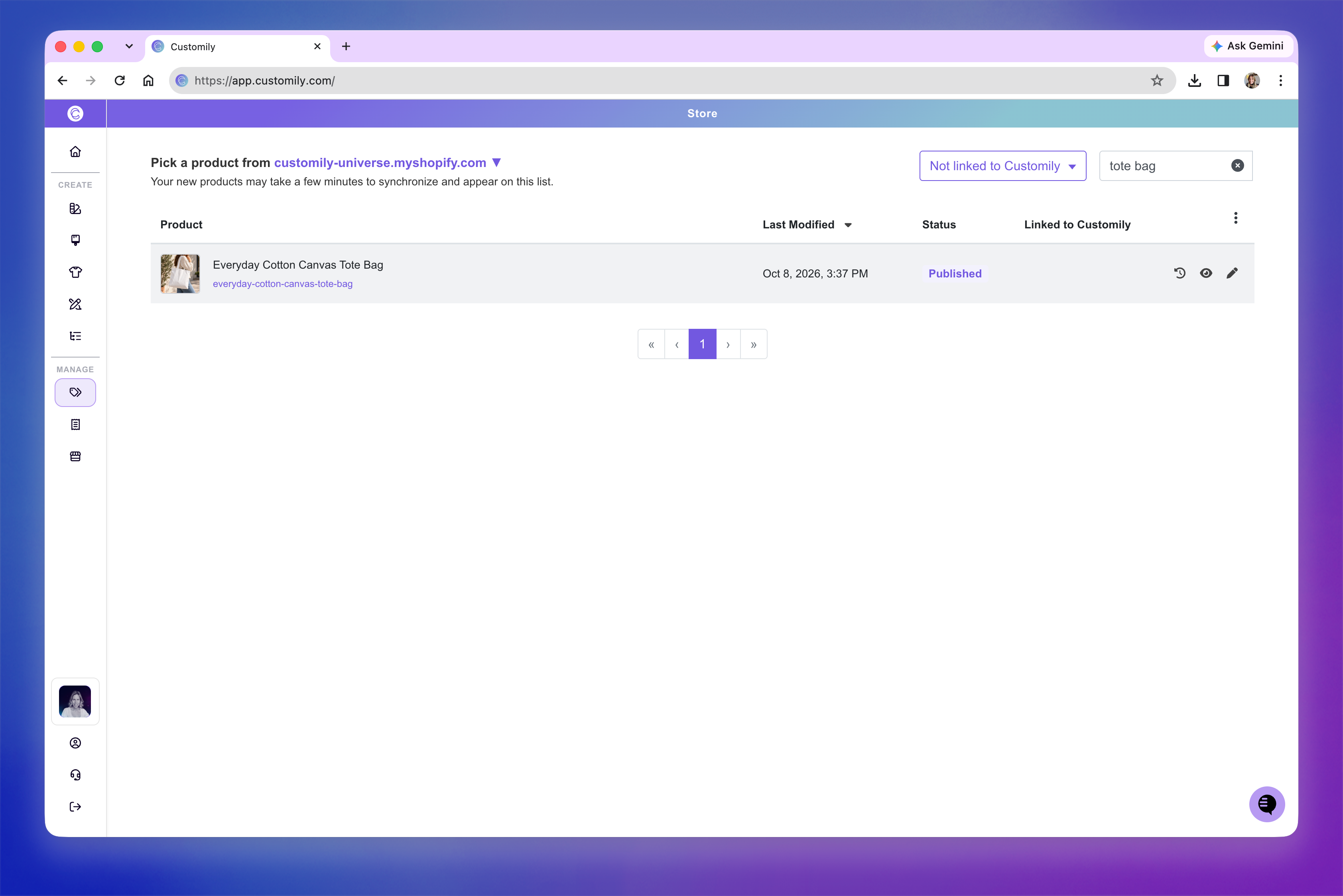
This opens its configuration, where you'll connect the Template and Option Set that will make your product personalizable.
2. Connect your Template
Your Template determines how the personalized product will look in the live preview and how its print-ready file will be generated.
In the Template section, select the Template you created for this product.
If you haven't created one yet, click Start designing to open the Design Studio and create it now.
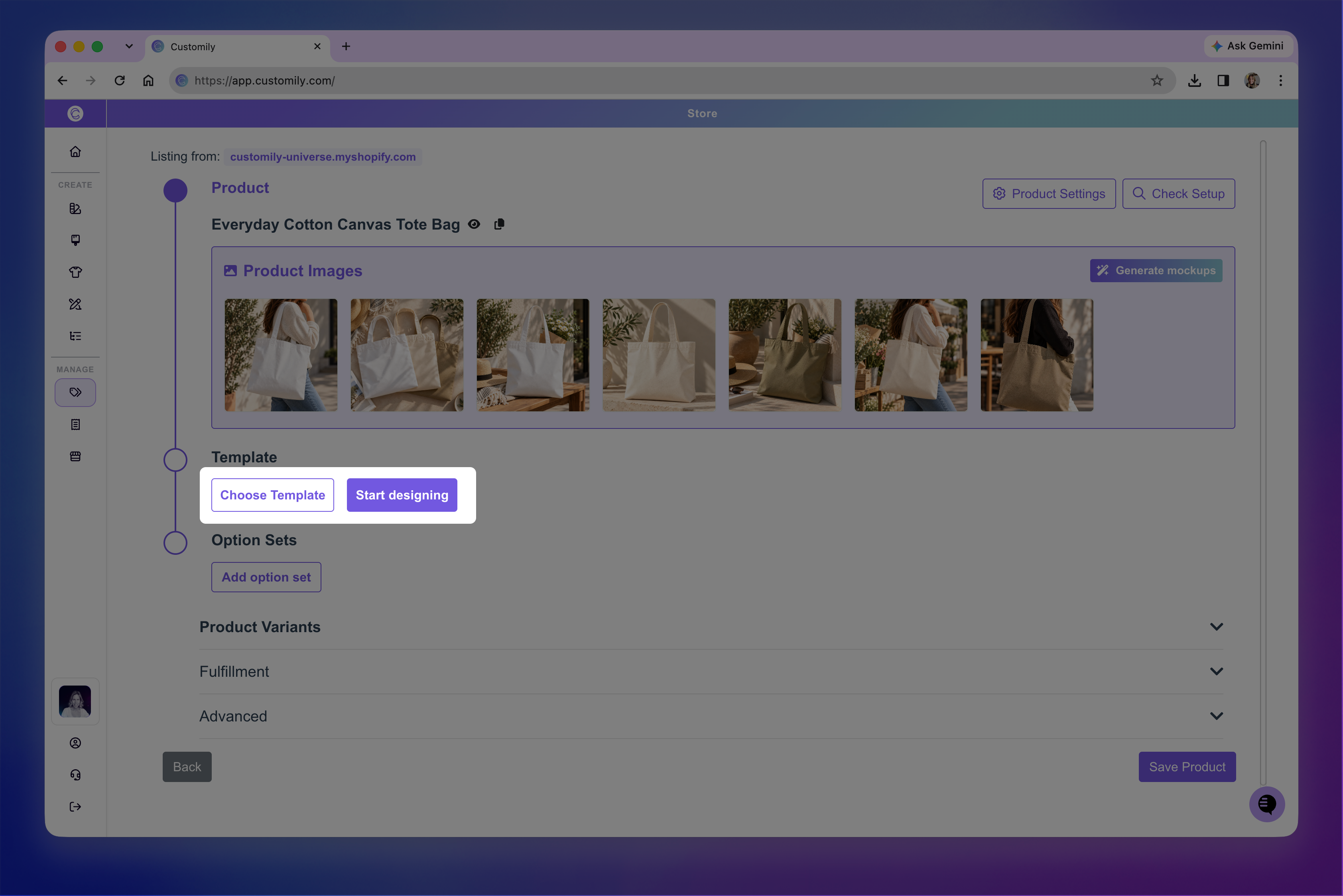
Make sure your Template includes the product preview, the elements shoppers will be able to personalize, and the correct print file setup.
3. Add your personalization options
Now that your Template is connected, you need to add the options shoppers will use to personalize the product.
The easiest way is to create an Option Set directly from your Template. Customily uses the personalized elements in your Template to automatically generate the corresponding options, saving you from having to create each one manually.
In the Option Sets section, choose the option to create an Option Set from your connected Template.
If you've already created an Option Set for this product, you can select that instead.
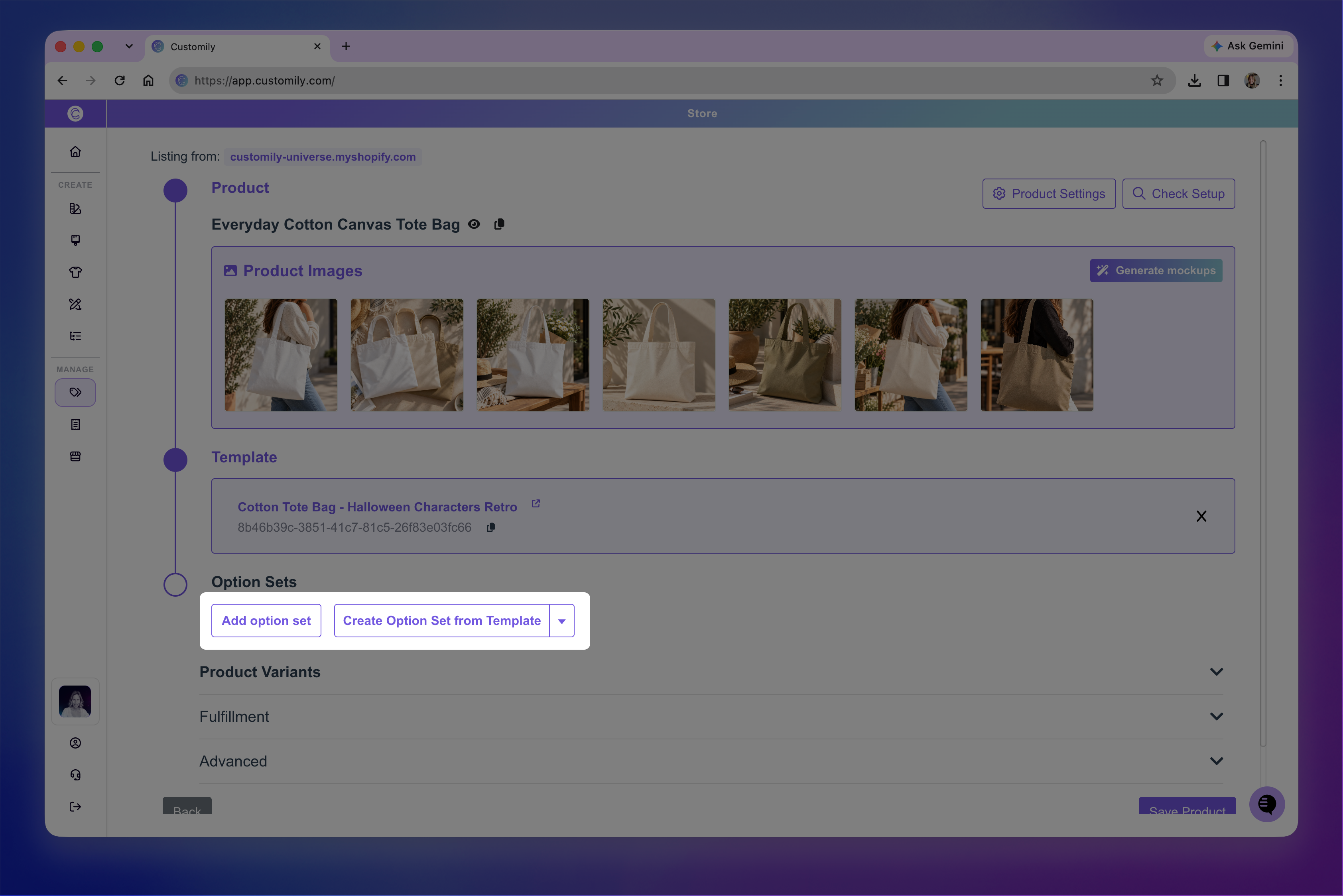
Once connected, you can open the Option Set to edit the options.
4. Connect product variants to your personalization (if needed)
If your product has variants that should change something in the personalized design, you'll need to connect them to the appropriate Template elements.
For example, if your product comes in different colors, you may want the product preview to change color when a shopper selects a different color variant.
Expand Product Variants and assign the appropriate functions to the variants that affect your design.
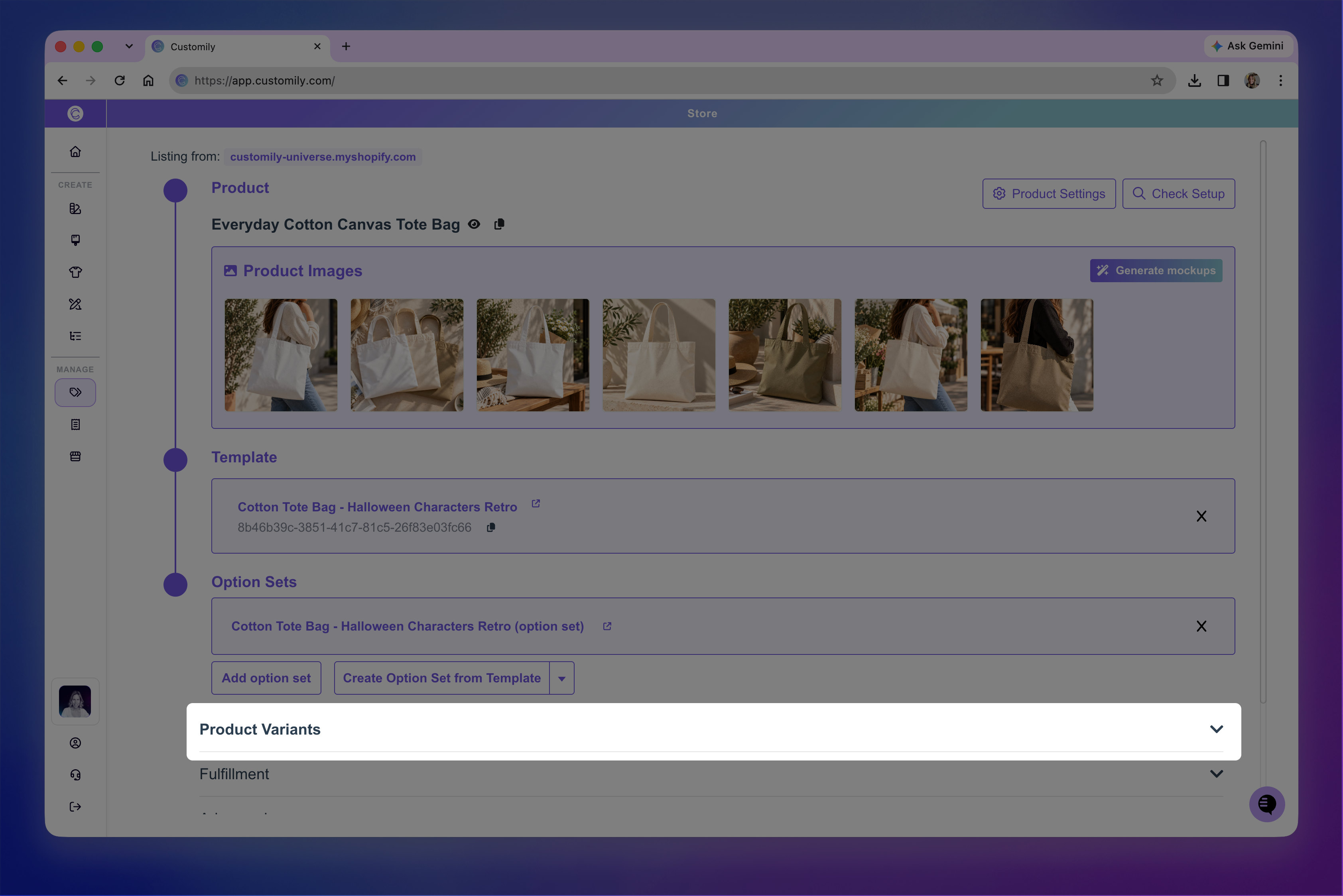
If your variants don't need to change the preview or personalization, you can skip this step.
For detailed instructions, see📄 How to Add Functions to Product Variants.
5. Test your personalized product
Your product is now connected to Customily! Before making it available to shoppers, it's a good idea to test the personalization experience on your storefront.
Click the eye icon next to the product name at the top of the product configuration page to open the product in your store.
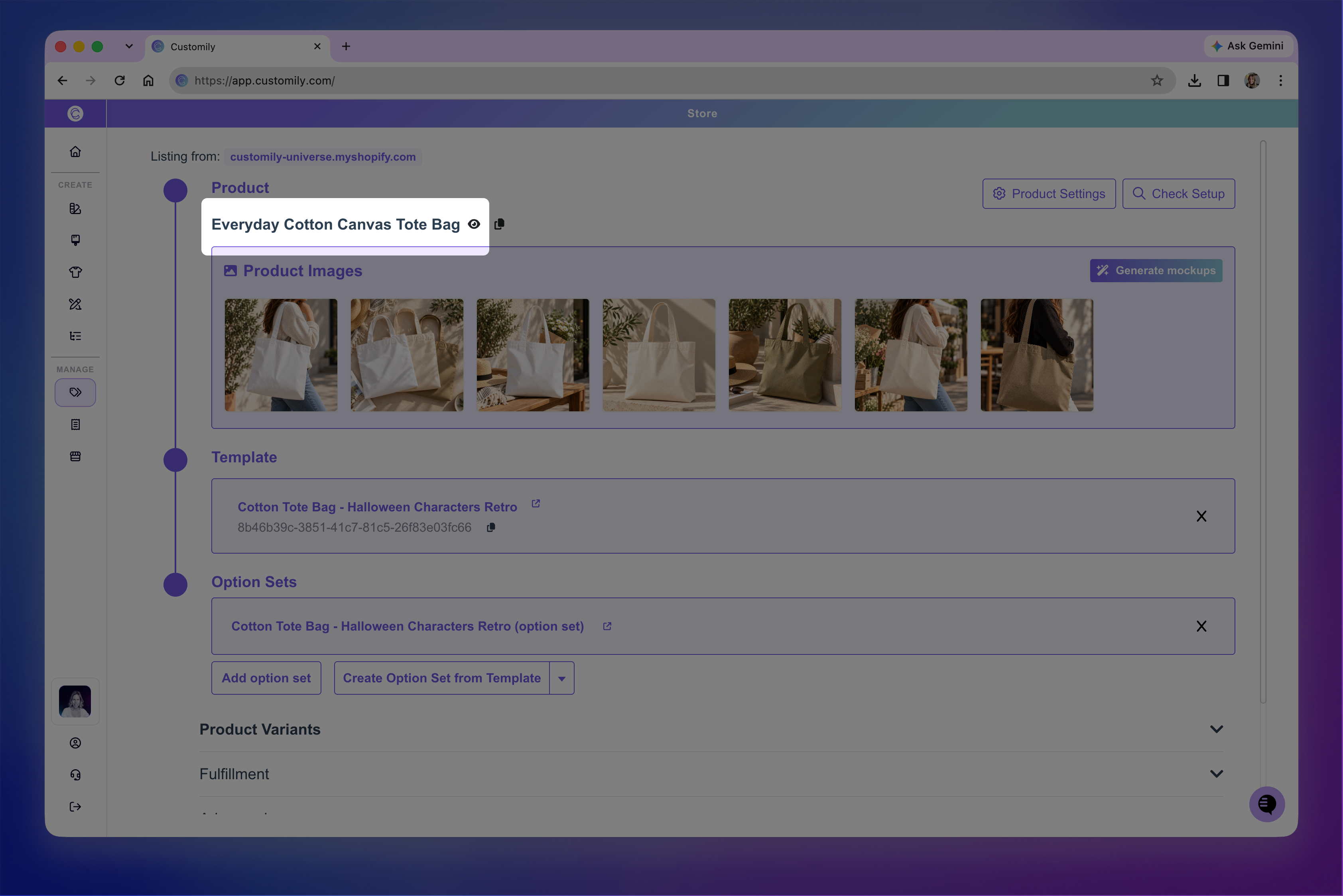
Try personalizing it as a shopper would:
Enter text, select options, or upload images, depending on your product.
Check that your selections appear correctly in the live preview.
If you've connected product variants, make sure switching between them updates the design as expected.
If something doesn't look right, return to Customily and make adjustments to your Template, Option Set, or variant functions.
Once everything works as expected, your product is ready for shoppers to personalize!