Locking elements
Last updated: April 28, 2026
You can lock elements on the Layer Panel to avoid editing them while working on your designs.
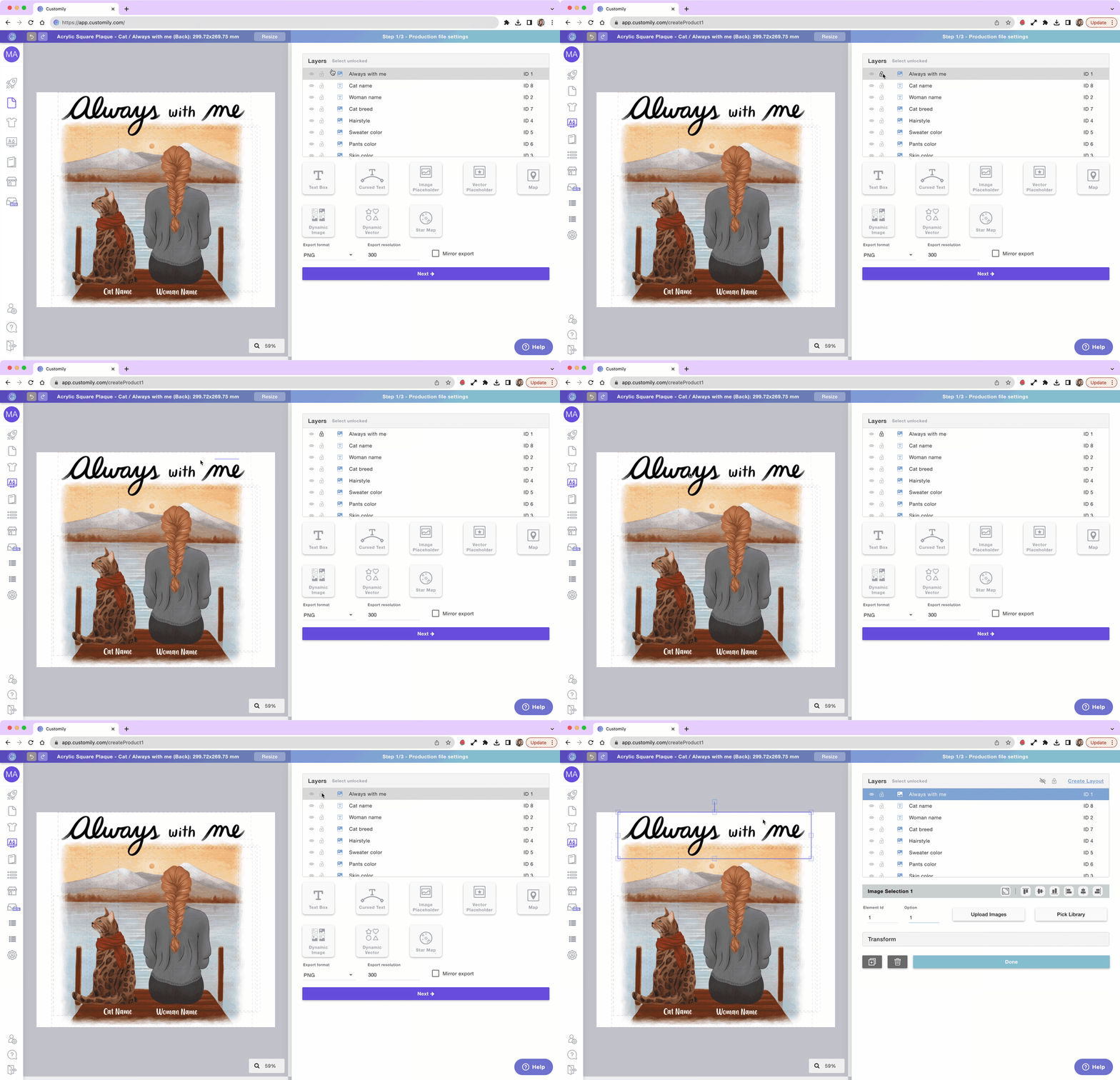
To lock an element
Select the element on the Layer Panel or Workspace
Go to the Layer Panel
Click 🔓 next to the layer name
When locked, the layer will be identified with the 🔒 and its boundaries will be red. Locking the element will prevent you from editing it in any way (moving, resizing, deleting, etc.)
To unlock an element
Select the element on the Layer Panel or Workspace
Go to the Layer Panel
Click 🔒 next to the layer name